
Change Control, Drafts & Semantic Merge
Domain models evolve continuously alongside production data and handwritten business logic. Perlite Studio’s Change Control Bar and Draft Review Studio go beyond line-by-line file diffs with semantic impact analysis — isolating active edits in draft sandboxes and tracing every change across entities, screens, state machines, views, and action points.
1. Protected Published Baseline & Isolated Draft Sandboxes
The Change Control Bar along the bottom of Studio protects Published Model (main) by default:
- Auto-Draft Branching: Whenever an edit begins while viewing
Published Model · Protected - Auto-Draft, Studio prompts to fork a named Draft (such asDispatch SLA Escalation), keepingmainclean until changes pass review. - Per-Draft Database Sandboxes: Switching between drafts automatically stashes and swaps an isolated SQLite sandbox database so new attributes, seed datasets, and test migrations execute cleanly per draft without affecting other workstreams.
Save & Share: Checkpoints unshared draft modifications into version control and keeps distributed collaborators synchronized.
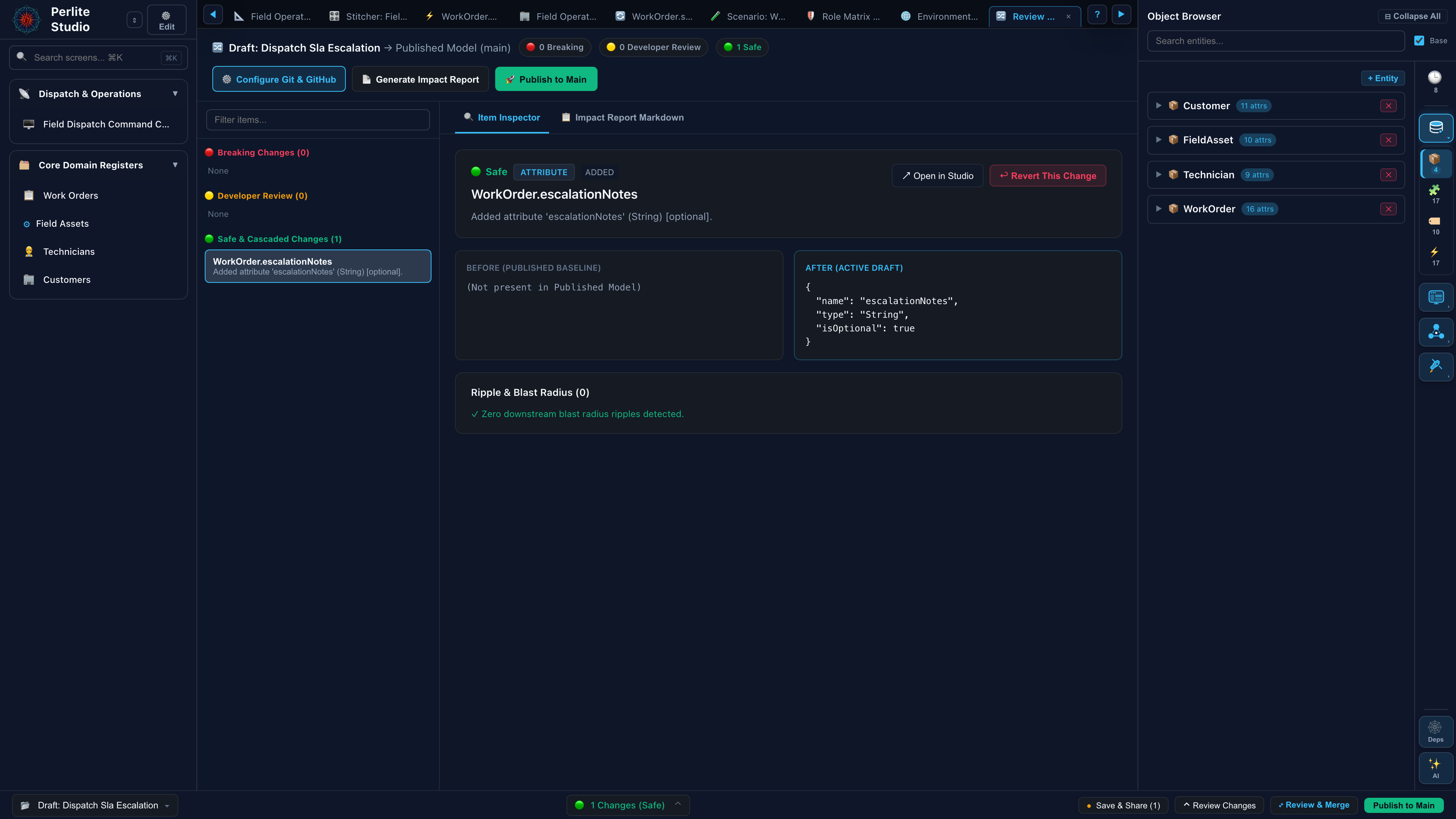
Draft Review Studio comparing the active draft against Published Model (main) with risk tiers, item inspection, and blast-radius verification.
2. Semantic Impact Analysis, Blast Radius & Auto-Cascading Renames
Click ⌃ Review Changes for a compact drawer or ⤢ Review & Merge to open the full Draft Review Studio:
- Three Semantic Risk Tiers: Every change is categorized automatically in the left rail:
🔴 Breaking: Structural deletions or type changes that break screen bindings, foreign-key relations, views, state machines, scenarios, or drop persisted data. Publishing stays gated until breaking items are resolved.🟡 Developer Review(Dependent): Changes touching custom TypeScript action points or inherited trait behaviors where engineer sign-off ensures handwritten code stays aligned.🟢 Safe: Additive fields, new capabilities, non-destructive constraints, and auto-cascaded references.
- Before vs Active Draft Inspector & Jump-to-Studio: Inspect structured property diffs cleanly side by side, click
↗ Open in Studioto navigate straight to the target entity or screen, or click↩ Revert This Changeselectively per item. - 1-Click Auto-Cascading Renames: When an attribute rename triggers broken references on downstream panels, state machines, logic blocks, or scenarios, Draft Review offers an automatic Cascade Rename action that updates every affected binding across the workspace cleanly.
- Client Impact Report (Markdown): Switch to the
Impact Report Markdowntab (or click📄 Generate Impact Report) to copy a stakeholder-ready summary of model changes, affected screens, and affected entities.
3. Three-Way Model & Code Merge, Publishing & Pull Requests
When multiple collaborators work concurrently from main:
🔄 Sync with Published: Pulls upstream updates into your draft branch. Clean non-overlapping model edits merge structurally at element granularity.- Three-Way Visual & Code Conflict Resolution: Structural collisions (
property_collision,delete_modify,add_add_collision) surface side-by-sideours/theirs/customcards (MergeConflictCard), while custom TypeScript collisions open an interactive three-way code merge view (CodeConflictMergeView). 🚀 Publish to Mainor🔗 Submit Pull Request: Once0 Breakingand0 Merge Conflictsremain, clickPublish to Main(sealing any schema migrations automatically) or connect Git & GitHub to raise a tracked Pull Request enriched with the Markdown Impact Report.