
Access Control, Roles & Entra ID OIDC
Perlite enforces zero-trust deny-by-default authorization across API controllers, state transitions, sensitive field unsealing, and visual screens. Permissions are authored centrally in Studio, tested against live Microsoft Entra ID / OIDC claims before identity cutover, and simulated directly inside screen previews.
1. Two-Dimensional RBAC Matrix Studio & Access Simulator
Open Object Browser → Architecture & Integration → Roles (🛡️) and click Matrix Studio to launch the Role-Based Access Control (RBAC) Studio. Every domain entity and custom action sits on rows grouped by business capability, while workspace roles form columns across a two-dimensional permission grid:
- Deny-by-Default Evaluation: Access requires an explicit entity/action permission (such as
WorkOrder.create,WorkOrder.transition.*, or wildcardCustomer.*). Wildcard*.*grants unrestricted administrative control. - Capability Groups vs Flat A-Z List: Switch between
Capability Groups(showing domain capabilities likeCUSTOMER & SLA CONTRACTSandTRIAGE & DISPATCH SCHEDULING) andFlat A-Z Listfor cross-domain auditing. - Sensitivity & Action Columns: Entities declaring classified attributes (
siteAccessPin,primaryContactEmail,presentingComplaint,clinicalSummary) display per-roleMaskedorReveal PII/ePHIpills alongside CRUD checkboxes (RCUD) and workflow transition toggles (AssignTechnician,DepartToSite,ArriveOnSite,CompleteWorkOrder). - Inline Access Simulator: Toggle
Access Simulatorin the header bar, pick any Role, Entity, and Action (for exampleComplianceAuditor+Customer+read (GET)), and inspect the exact HTTP outcome and matching rule (✓ ALLOWED (200) — Matched: *.reador403 Forbidden).
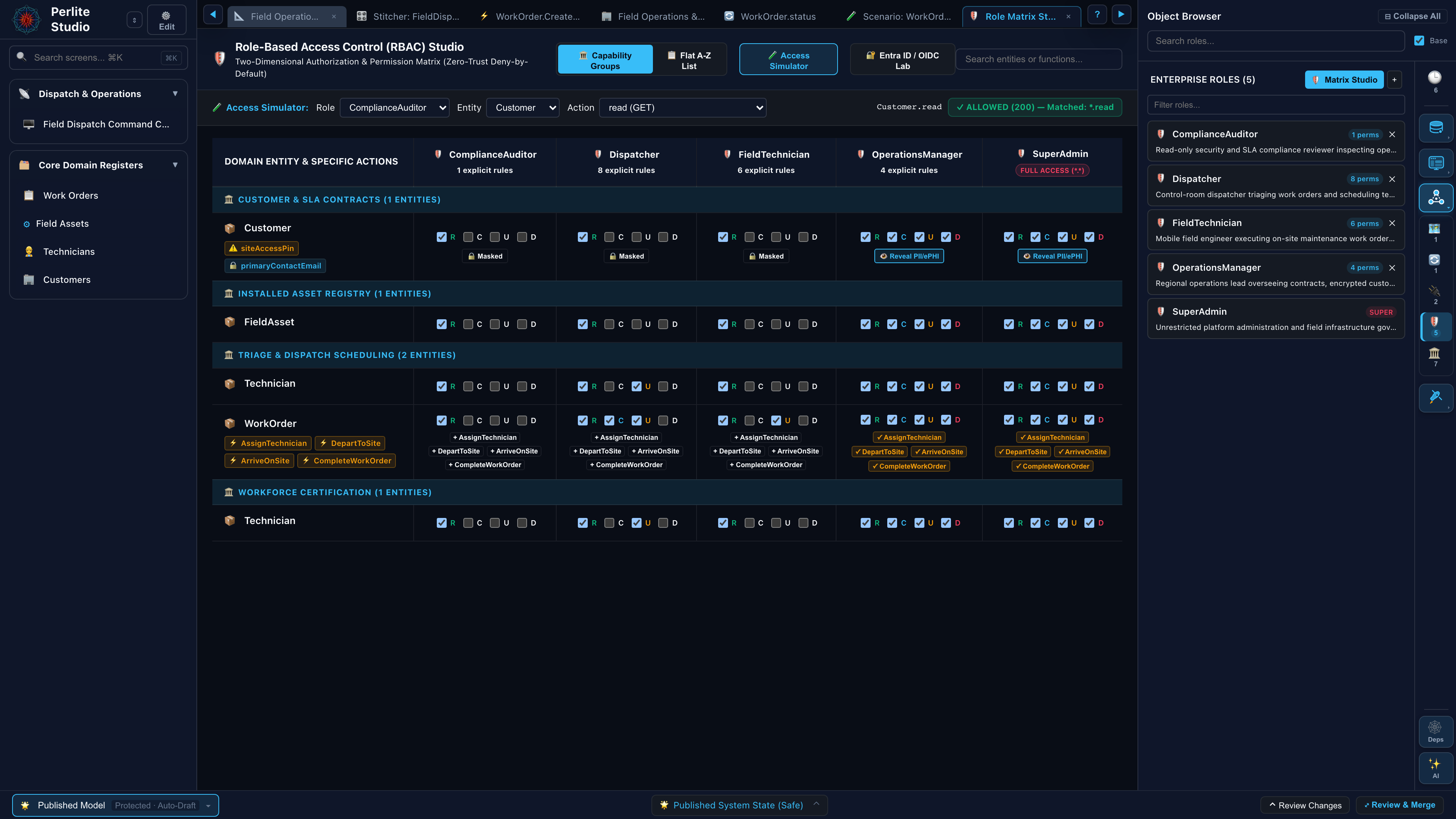
2D RBAC Matrix Studio grouped by capability with per-role CRUD toggles, workflow actions, Masked vs Reveal PII/ePHI indicators, and the live Access Simulator bar.
2. Microsoft Entra ID / OIDC Token Lab & Azure Portal appRoles
Click Entra ID / OIDC Lab in the RBAC Studio toolbar to validate external identity federation prior to production deployment:
1. Simulate & Inspect Entra JWT: Pick a target Persona Role and Entra Claim Emission Scenario (groupsGUID array orrolesclaim value), then click⚡ Mint RS256 Entra v2.0 Token & Dry-Run. Perlite signs a fullRS256v2.0 bearer JWT, runs signature and claim-to-role resolution (Client Environment Readiness Report), and tabulates effective CRUD and unsealing rights across every entity.2. External IdP Group & Role Mappings: Configure each role’sexternalMappings.entraGroupIdsUUIDs andexternalMappings.idpRolesvalues side by side, plus inspect Group Overage handling when large directory tokens exceed embedded group limits.3. Azure Portal App Manifest (appRoles): Export deterministicappRolesJSON ready to paste into an Azure App Registration manifest so external directory roles align cleanly with compiledroles.jsonandentra-app-roles.manifest.json.
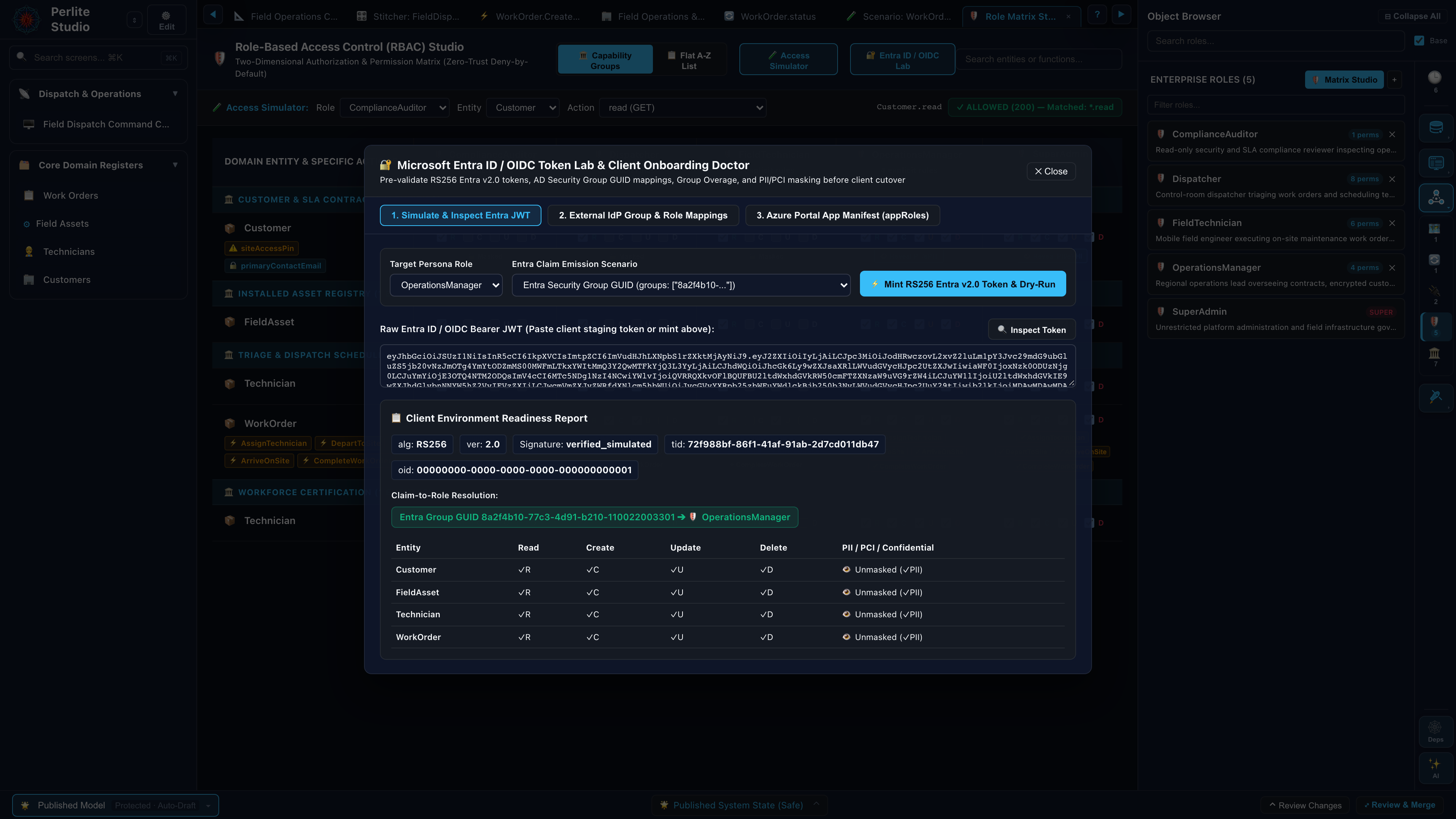
Entra ID / OIDC Token Lab minting and verifying an RS256 token mapped by Group GUID to OperationsManager with live effective permission checks.
3. Live Role Simulation & Field Masking in Screen Stitcher
Permission policies also flow straight into UI verification inside Screen Stitcher Studio:
- Open any workspace in Preview / Runtime Mode and choose a role from the
🛡️ Roledropdown on the Studio Header Bar (for example🛡️ Role: Dispatcher). - Permission badges update immediately beside the selector (
✓R ✓C ✓U ✗D ✗PIIin green and red), indicating permitted CRUD verbs and whether sensitive fields unseal or mask for that role. - Restricted mutations surface inline authorization feedback right on the canvas so UI flows and backend
@RequirePermissionguards remain verified together before publishing.
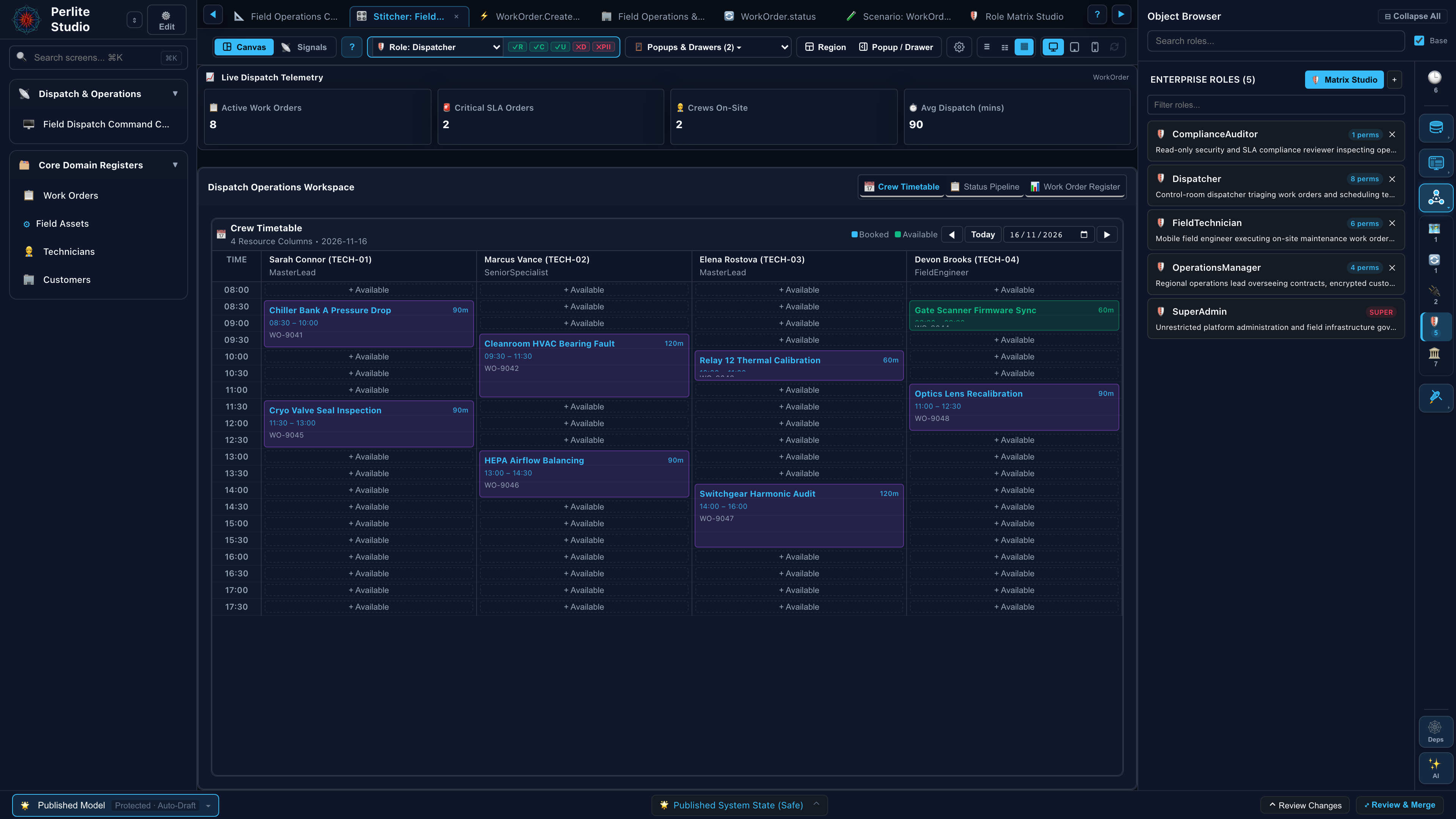
Screen Stitcher header simulating Dispatcher with instant CRUD and PII/ePHI permission badges alongside live dispatch data.